AI Assistant
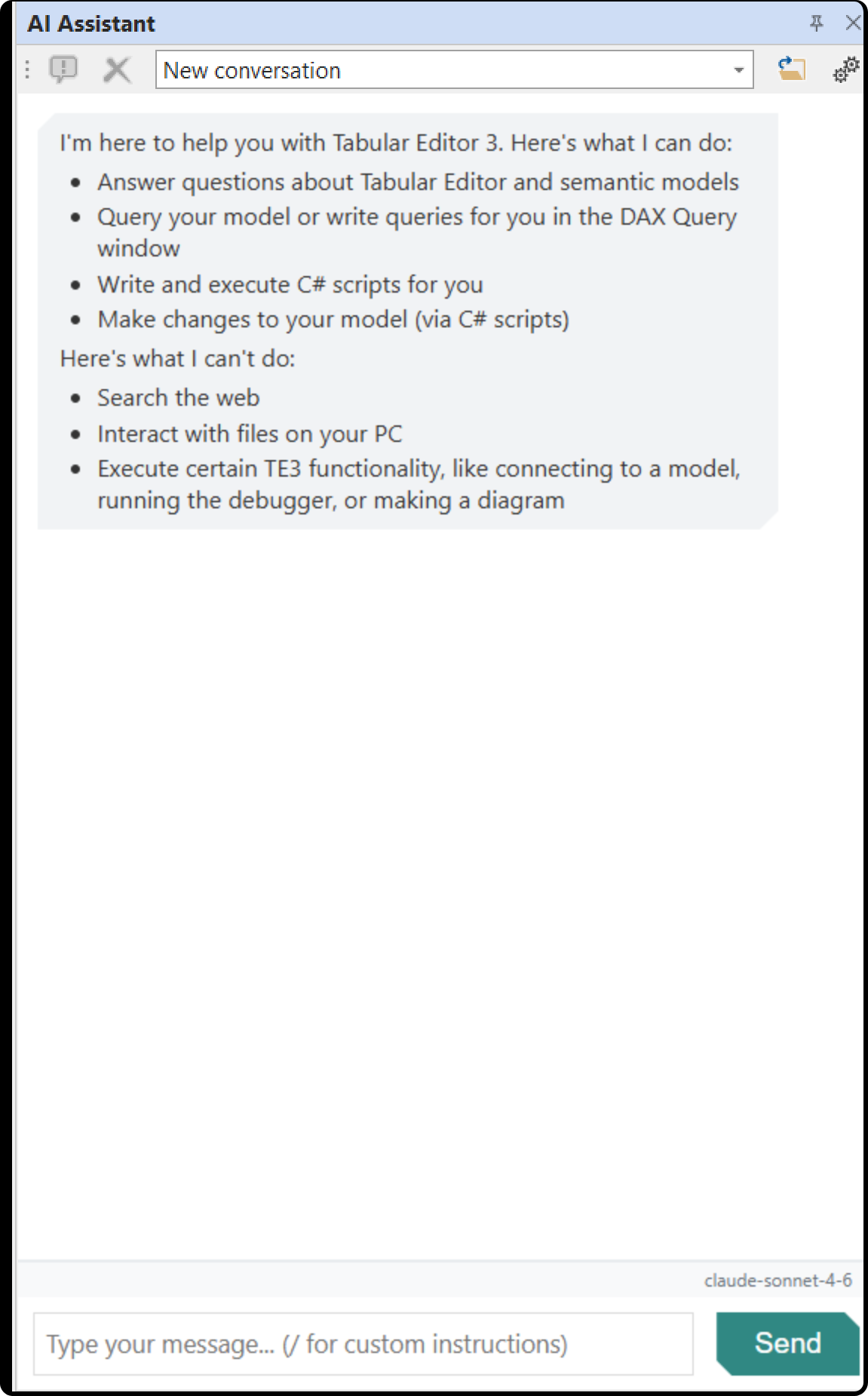
The AI Assistant is a chat panel for semantic model development. It explores your model metadata, writes and runs DAX queries, generates C# scripts, runs Best Practice Analyzer checks, queries VertiPaq Analyzer statistics and searches the Tabular Editor knowledge base. Permission settings control what it sends to your AI provider. The AI Assistant has undergone independent penetration testing; see the Tabular Editor Trust Center.
The AI Assistant uses a bring-your-own-key model, where you provide an API key from one of the supported providers and the assistant runs directly against that provider's API.
You can also use your own agent through the MCP server, with no API key. An agent such as Claude Code, GitHub Copilot, VS Code agent mode, Codex or Cursor works on the open model with the same tools and permission settings as the chat, except for session and per-model grants, which apply to the chat only. See MCP server and AI Assistant differences.
Getting started
- Open Tools > Preferences > AI Features > AI Assistant > AI Provider
- Select your AI provider (on a fresh install this defaults to None (AI disabled)), then enter your API key
- Open the AI Assistant panel from View > AI Assistant
- Type a message and press Enter to start a conversation
Tip
The interactive demo of the AI Assistant walks through setup and use.
Note
API keys are stored encrypted on your local machine.
Supported providers
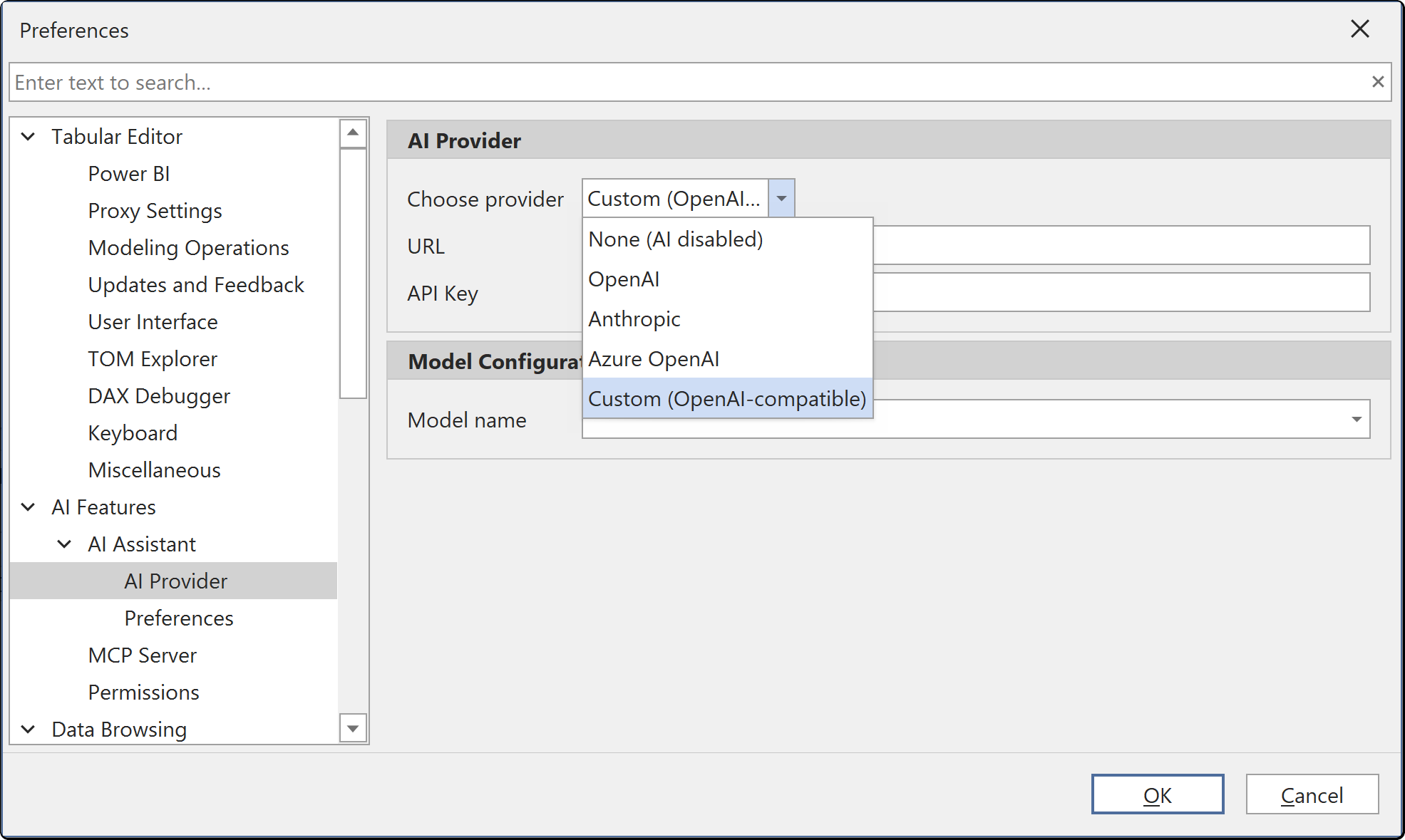
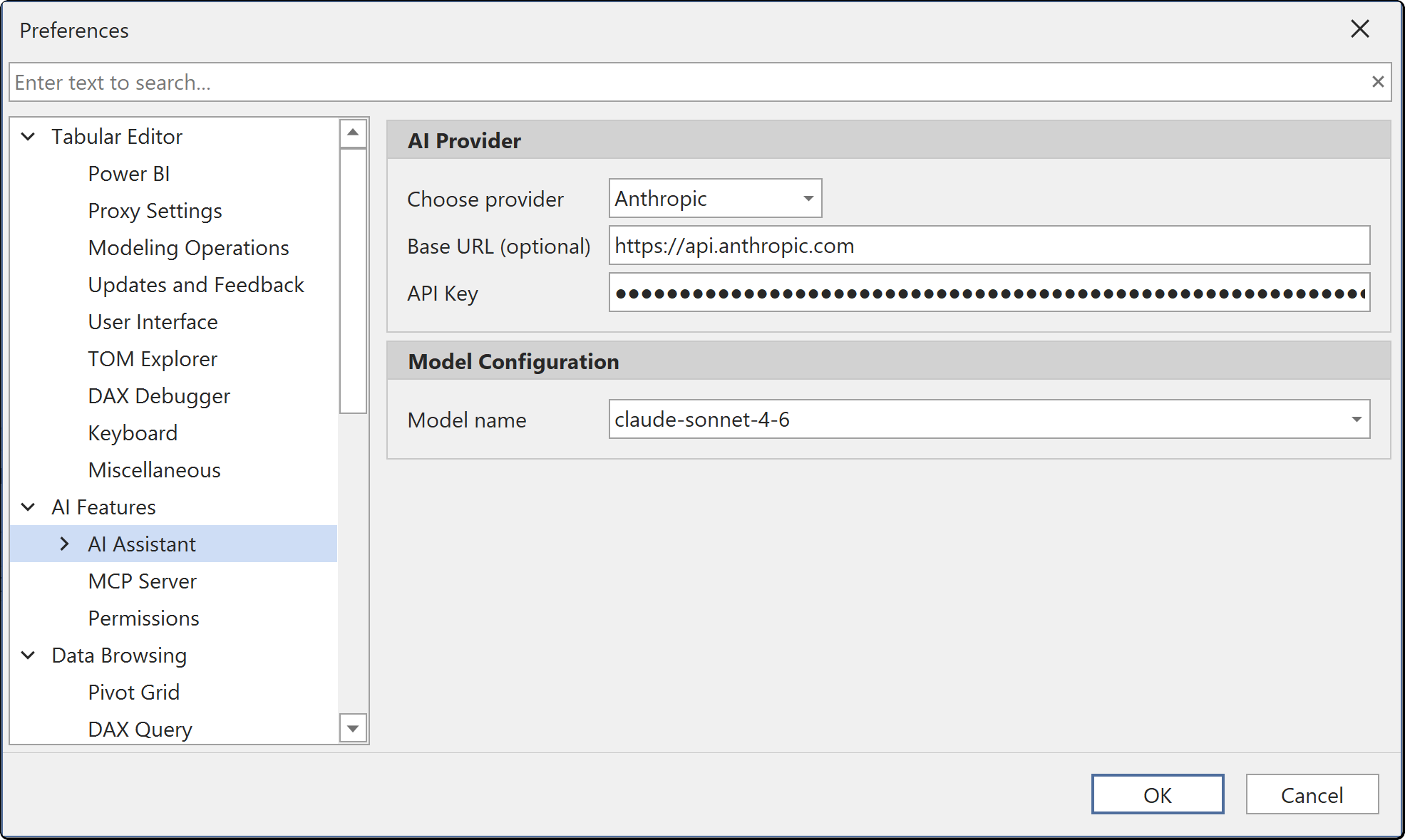
Configure your AI provider under Tools > Preferences > AI Features > AI Assistant > AI Provider. Select a provider from the dropdown (the default is None (AI disabled) until you configure one), enter your API key and optionally override the default model.
Leave the model field blank to use the provider's default model. OpenAI and Anthropic have defaults; Azure OpenAI and the Custom provider always need a value.
| Provider | Default model | Configuration required |
|---|---|---|
| OpenAI | gpt-5.5 | API key. Optional base URL, Organization ID and Project ID |
| Anthropic | claude-sonnet-4-6 | API key. Optional base URL |
| Azure OpenAI | None. A deployment name is required | API key, endpoint URL and deployment name |
| Custom (OpenAI-compatible) | None. A model name is required | API key and custom endpoint URL |
Choosing a model
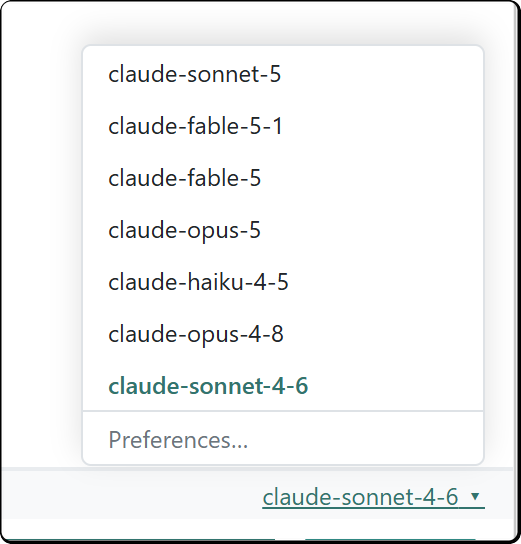
The active model is shown in the status strip above the message box, next to the context usage bar. Click it to open a picker listing the models available for the configured provider; a model you pick applies from the next request. The last entry, Preferences..., opens Tools > Preferences > AI Features > AI Assistant > AI Provider for anything not on the list. For the Azure OpenAI and Custom providers, or before the model list has been retrieved, the model name is a link that opens those preferences.
Note
The model indicator is hidden until a provider, an API key and a model are all set.
OpenAI
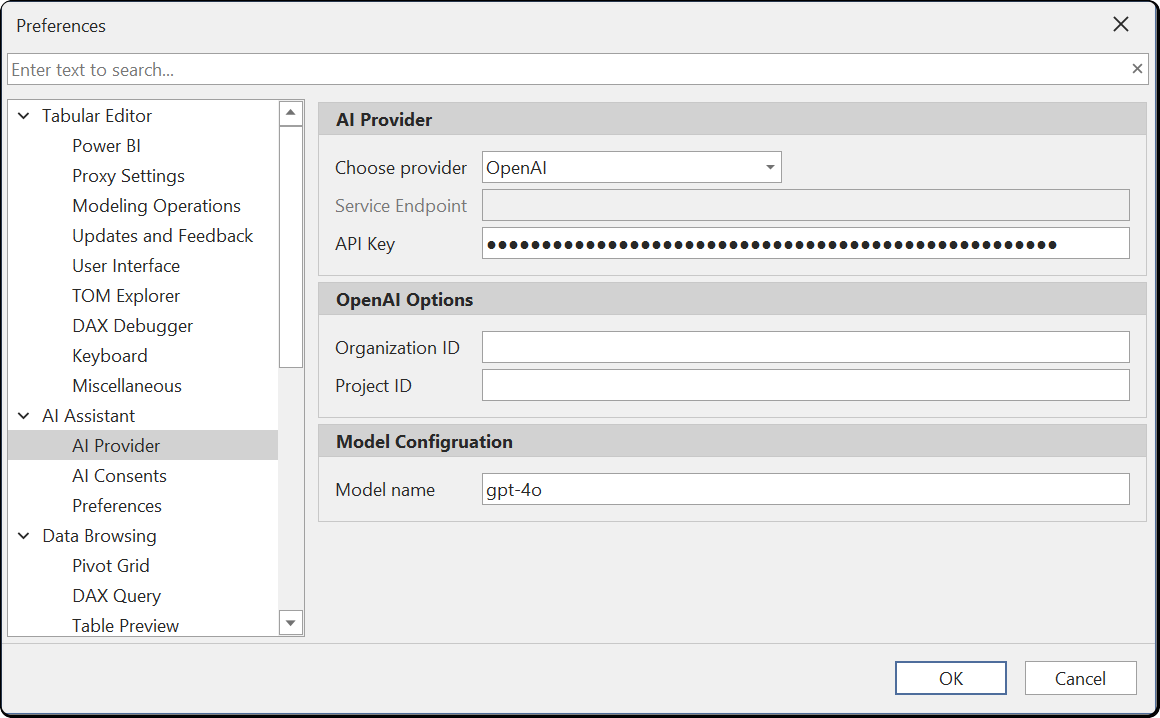
Select OpenAI as the provider and enter your API key. If your OpenAI account uses an Organization ID or a Project ID, enter those too. The model name accepts any model available on your account.
Anthropic
Select Anthropic as the provider and enter your API key. The model name accepts any Anthropic model available on your account.
Important
Anthropic enforces input token per minute (ITPM) rate limits based on your account tier. A new API key starts at Tier 1 with 30,000 ITPM for Claude Sonnet 4.x. A single request against a large model can exceed this limit. Purchase $40 or more in API credits to reach Tier 2 (450,000 ITPM). See the Anthropic rate limits documentation for full tier details.
Azure OpenAI
Select Azure OpenAI as the provider and configure these fields:
- API key: the access key for your Azure OpenAI resource
- Service endpoint: the resource URL, for example
https://your-resource.openai.azure.com. The SSL certificate is issued for*.openai.azure.com, so a*.privatelink.openai.azure.comaddress fails certificate validation - Deployment: the deployment name shown in the Name column of Deployments
Azure OpenAI requires the deployment name in every API call. The name is set when the deployment is created and often matches the model it serves, for example gpt-4o, but it can differ. If you enter the resource name or a model name that doesn't exist as a deployment, the request fails.
Find the deployment name in the Azure AI Foundry portal:
- Sign in and select your Azure OpenAI resource
- Open Deployments (or Models + endpoints if the resource has been upgraded to Foundry)
- Copy the value from the Name column
If a deployment created before your organization adopted Azure AI Foundry doesn't appear in the portal, list the deployments with the Azure CLI:
az cognitiveservices account deployment list --name "<resource-name>" --resource-group "<resource-group>" --output table
See Create and deploy an Azure OpenAI resource.
For 403 errors, SSL failures or "DeploymentNotFound" responses, see Azure OpenAI connection errors. For models deployed in Microsoft Foundry, see Using Microsoft Foundry.
Custom (OpenAI-compatible)
The Custom provider connects to any LLM that exposes an OpenAI-compatible API endpoint, such as a model on your own machine or one hosted on your organization's network. Enter your API key and the endpoint URL. With a self-hosted model, all data stays within your own infrastructure and nothing is sent to a third-party cloud provider. See Using a local or organizational LLM.
Using a local or organizational LLM
You can run the AI Assistant against a self-hosted LLM by using the Custom provider. This keeps all data within your own infrastructure, whether that is a model running on your local machine or a centrally hosted LLM within your organization's network. Either way, no data is sent to a third-party cloud provider. These tools host models with an OpenAI-compatible API, on a developer's workstation or on a shared server that serves as a team endpoint:
- Ollama: lightweight CLI for downloading and running models locally
- LM Studio: desktop application with a graphical interface for managing and running local models
- LocalAI: self-hosted, community-driven alternative with broad model support
Example: Ollama
- Download and install Ollama
- Pull a model, for example
ollama pull llama3.1 - Start the Ollama server. It starts automatically after installation, by default on port 11434
- In Tabular Editor, go to Tools > Preferences > AI Features > AI Assistant > AI Provider
- Set Choose provider to Custom (OpenAI-compatible)
- Set Service Endpoint to
http://localhost:11434/v1 - Set Model name to the model you pulled, for example
llama3.1 - Set API Key to any non-empty value, for example
ollama. Ollama doesn't require authentication, but the field can't be blank
Example: LM Studio
- Download and install LM Studio
- Download a model from the model search page in the left panel, or with the CLI, for example
lms get lmstudio-community/Meta-Llama-3.1-8B-Instruct-GGUF - Start the LM Studio server from the developer page in the left panel, or with
lms server start. Turn on OpenAI-compatible mode. If the context size is below 100,000 tokens, raise it above 100,000 - In Tabular Editor, go to Tools > Preferences > AI Features > AI Assistant > AI Provider
- Set Choose provider to Custom (OpenAI-compatible)
- Set Service Endpoint to
http://localhost:1234/v1 - Set Model name to the model you downloaded, for example
lmstudio-community/Meta-Llama-3.1-8B-Instruct-GGUF - Set API Key to any non-empty value, for example
lms. LM Studio doesn't require authentication, but the field can't be blank
Note
Response quality with local models depends on the model size and your hardware. Larger models give better results and need more RAM and a capable GPU. The AI Assistant's tool calling requires a model that supports function calling in the OpenAI-compatible format.
Tip
Use a model with at least 30 billion parameters, and preferably 100 billion or more. Qwen3.5-122B-A10B performed well in internal testing.
Using Microsoft Foundry
Microsoft Foundry (formerly Azure AI Foundry) deploys OpenAI and Anthropic models in your Azure environment. Connect to these models with the OpenAI or Anthropic provider in Tabular Editor.
Important
Don't use the Azure OpenAI provider for Microsoft Foundry models. It works only with classic Azure OpenAI resources that use the api-version query parameter.
OpenAI models on Microsoft Foundry
Configure an OpenAI model deployed in Microsoft Foundry, such as GPT-4o or GPT-5.4-mini:
- In Tabular Editor, go to Tools > Preferences > AI Features > AI Assistant > AI Provider
- Set Choose provider to OpenAI
- Set Base URL to your Foundry resource endpoint with
/openai/v1appended, in one of these formats:https://your-resource.services.ai.azure.com/openai/v1https://your-resource.openai.azure.com/openai/v1
- Enter your Foundry API Key
- Set Model name to your deployment name, for example
gpt-5.4-mini
Note
The Microsoft Foundry portal doesn't show the base URL. It shows a Target URI with the full API path, for example https://your-resource.services.ai.azure.com/api/projects/YourProject/openai/v1/responses. For the base URL, use only https://your-resource.services.ai.azure.com/openai/v1.
Anthropic models on Microsoft Foundry
For an Anthropic model deployed in Microsoft Foundry, such as Claude Sonnet 4.6:
- In Tabular Editor, go to Tools > Preferences > AI Features > AI Assistant > AI Provider
- Set Choose provider to Anthropic
- Set Base URL to your Foundry resource endpoint with
/anthropicappended, for examplehttps://your-resource.services.ai.azure.com/anthropic - Enter your Foundry API Key
- Set Model name to the model identifier, for example
claude-sonnet-4-6
Note
The portal shows a Target URI such as https://your-resource.services.ai.azure.com/anthropic/v1/messages. For the base URL, use the part up to and including /anthropic.
Capabilities
Within your permission grants, the AI Assistant works with your model context:
- Model exploration: queries model metadata, including tables, columns, measures, relationships and their properties
- DAX query writing: generates DAX queries, runs them against your connected model and returns the result sets in the chat
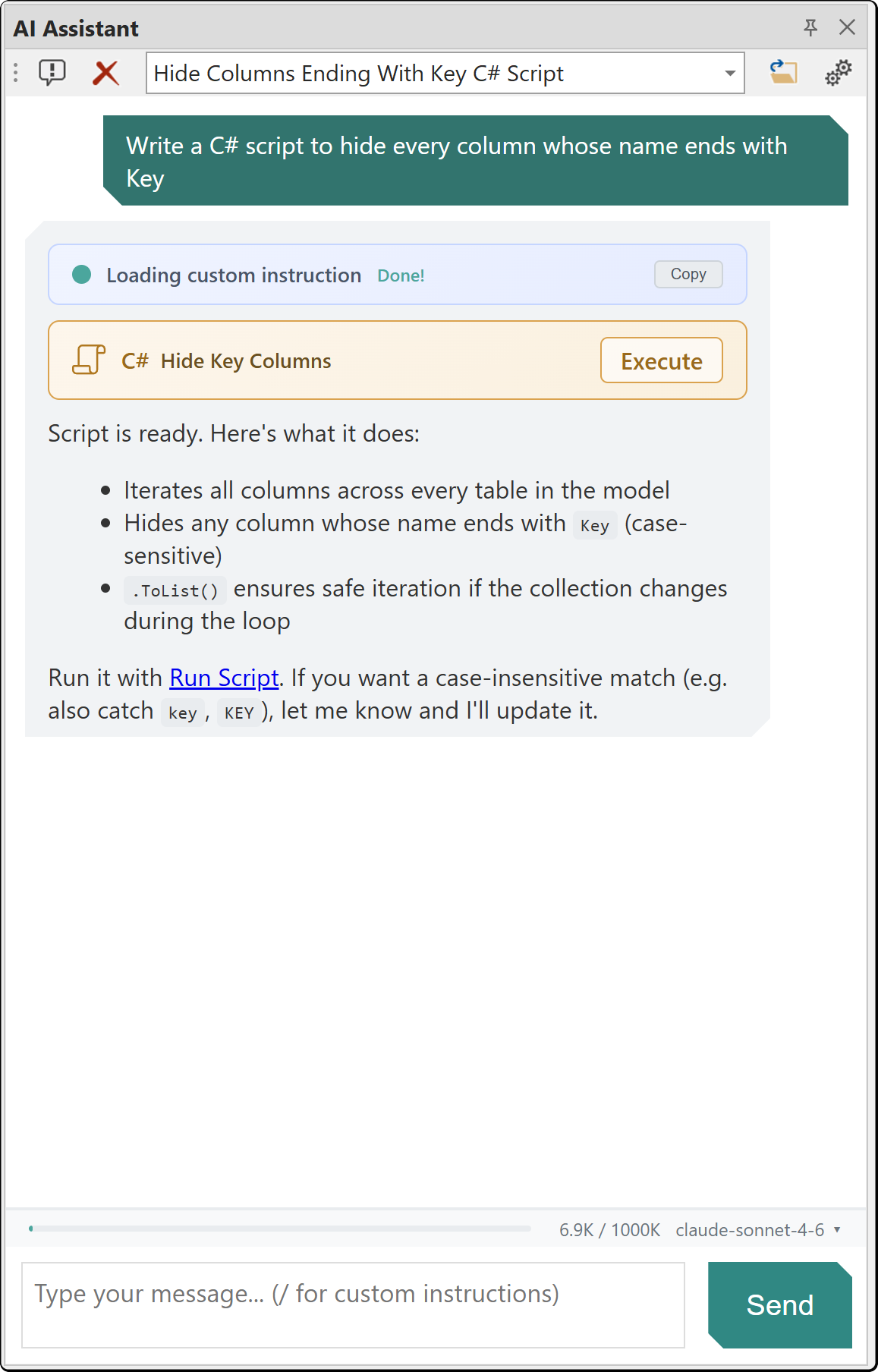
- C# script generation: creates C# scripts for model changes. Depending on your settings, the assistant opens the script in an editor window for you to run, or runs it itself; see Letting the assistant change your model. Ctrl+Z undoes model metadata changes
- Best Practice Analyzer: runs BPA analysis, lists rule violations and creates or modifies BPA rules
- VertiPaq Analyzer: queries memory usage statistics and column cardinality
- Document access: reads and modifies open documents: DAX queries, C# scripts and DAX scripts
- Knowledge base search: searches the embedded Tabular Editor documentation
- UI navigation: generates
te3://action links that open specific Tabular Editor dialogs and features
An agent connected over the MCP server has the same capabilities except UI navigation. Both change your model by running a C# script as a single undoable step. They differ in how you review changes and grant permissions; see MCP server and AI Assistant differences.
Note
When the model is loaded from a file, such as a .bim file or a TMDL folder, and isn't connected to Analysis Services or Power BI, tools that need a connection are hidden, including DAX query execution and VertiPaq Analyzer statistics. The assistant still writes DAX queries, but Execute on DAX query artifacts is disabled until you connect. VertiPaq Analyzer statistics loaded from a .vpax file stay available.
Letting the assistant change your model
By default, the assistant writes a C# script and opens it in an editor window, where you read and run it. It can also run the script itself when you select Allow AI assistant to run C# scripts directly under Tools > Preferences > AI Features > AI Assistant > Preferences.
The setting is off by default and unavailable until Model metadata is set to Read/Write under Tools > Preferences > AI Features > Permissions.
What happens when the assistant runs a script
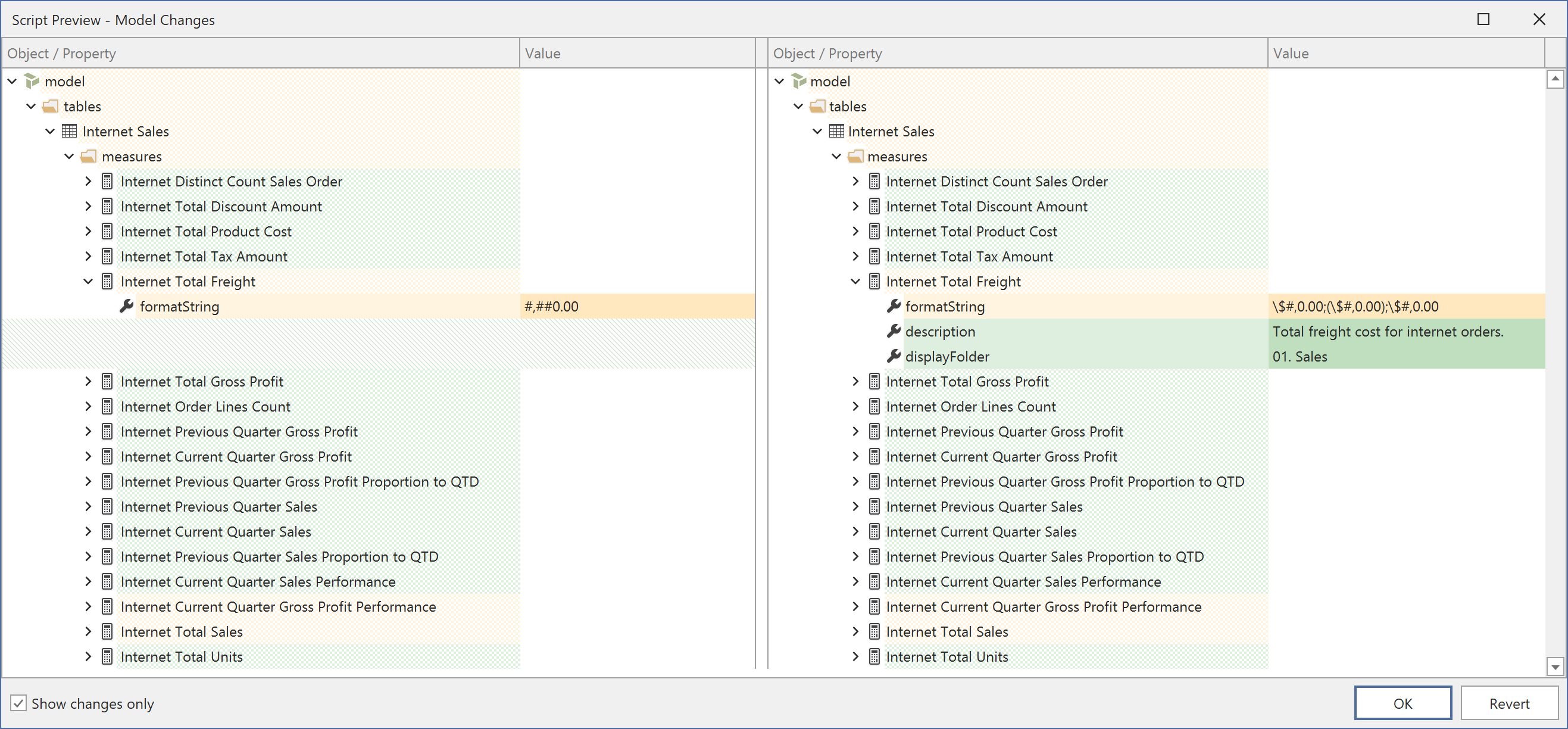
- If Preview changes is on (the default), the preview dialog appears before the changes are applied. Cancel reverts them and reports the rejection to the assistant. If Preview changes is off, the changes are applied without a dialog.
- The script's changes are one undo entry, C# script (AI Assistant). Ctrl+Z undoes the whole script.
- If the script fails part-way through, the model is left unchanged and the assistant reports the error.
- A script that accesses files, the network or external assemblies doesn't run. It opens as a script artifact with an Unsafe badge and Execute disabled, and the assistant's reply names what the script used.
If you ask for a script, for example "Write me a script that renames every measure to sentence case", the assistant opens it as a script document that you run yourself, even with this setting on.
The DisableCSharpScripts policy applies in every edition and turns off both direct execution and the scripts the assistant hands you to run.
The BlockUnsafeScripts policy requires Enterprise Edition and applies to every script in Tabular Editor, including scripts run over the MCP server. When it's set, the assistant can still write a script that accesses files, the network or external assemblies, but the script doesn't run and no artifact opens for review. See Administrator policies.
Conversations
The AI Assistant supports multiple simultaneous conversations, each with its own message history and context.
- conversations persist across sessions and are stored locally in
%LocalAppData%\TabularEditor3\AI\Conversations\ - titles are generated automatically after the first exchange, and you can rename a conversation
- Auto-compaction: when a conversation approaches the context window limit, older messages are summarized to free up space, after a snapshot of the full conversation is archived. The threshold is a percentage of the model's own context window, set under Context compaction
Deleting a conversation
Delete conversation is at the left end of the AI Assistant toolbar, next to New conversation. After you confirm the prompt, the conversation and its history are removed from disk and can't be recovered. The close button on the panel's title bar, or View > AI Assistant, hides the panel without deleting anything.
Artifacts
Code that the AI Assistant generates opens as an artifact in an editor window:
- C# scripts: a C# script editor with syntax highlighting, compilation and execution
- DAX queries: a DAX query editor with syntax highlighting and execution
Artifacts stream in as the AI generates them, and C# script artifacts include a safety analysis that flags unsafe code, such as file system access or network operations.
If Preview changes is on, running a C# script from the chat opens the Script Preview dialog with a side-by-side diff of all model metadata changes the script made, where you accept or revert the changes. See Running scripts with preview.
Custom Instructions
Custom Instructions are instruction sets that guide the AI Assistant on specific tasks. The assistant receives a list of every available instruction with its description, and loads the full text only of those relevant to your request, so keep descriptions accurate and specific. A loaded instruction stays in effect for the rest of the conversation.
Built-in Custom Instructions
The AI Assistant includes these Custom Instructions:
| Custom Instruction | Invoke with | Covers |
|---|---|---|
| DAX Querying | /dax-querying |
Writing and executing DAX queries: column and measure qualification, verifying filter values, validating and updating queries |
| Model Modification | /model-modification |
C# scripts that create or change model objects: TOMWrapper API patterns, execution order, idempotent updates, naming rules |
| Semantic Model Design | /model-design |
Star schema, relationships and cross-filtering, date tables, measures versus calculated columns, calculation groups, naming |
| Semantic Model Organization | /organize-model |
Auditing and tidying model metadata: naming conventions, table groups, display folders, hidden columns, format strings, descriptions |
| Semantic Model Size Optimization | /optimize-model |
Reducing model memory and size: VertiPaq measurement, column removal, data type tuning, structural changes, SKU limits |
| Macros | /macros |
Reusable C# macros for the Macros window: selection contexts, generic-code rules |
| DAX User-Defined Functions | /udf |
Writing DAX UDFs: syntax, VAL/EXPR parameter modes, type hints, namespaces, DaxLib |
| Best Practice Analyzer | /bpa |
Reviewing violations and writing custom rules as LINQ Dynamic expressions |
With Show custom instructions indicator selected under Tools > Preferences > AI Features > AI Assistant > Preferences, indicators above each response show which instructions influenced it.
Invoking a Custom Instruction
Type / to browse available Custom Instructions. Start your message with an instruction's /id to load it regardless of the message content; for example, /dax-querying loads the DAX querying instruction. A /id with no message loads the instruction without making a request. An explicitly loaded instruction stays in effect for the rest of the conversation, like one the assistant loads itself.
Add your own Custom Instructions
Create a Custom Instruction by placing a .md file in %LocalAppData%\TabularEditor3\AI\CustomInstructions\. The folder is created the first time the AI Assistant runs, with an example.md file in it to copy from. Open Custom Instructions Folder on the AI Assistant toolbar opens it.
The YAML frontmatter that defines the instruction metadata is optional:
---
id: my-custom-instruction
name: My Custom Instruction
description: A brief description shown in the autocomplete popup.
priority: 100
always_inject: false
hidden: false
---

Your instruction content goes here. This is the text that will be
injected into the AI's system prompt when the instruction is activated.
| Field | Required | Default | Description |
|---|---|---|---|
id |
No | Filename without .md |
Unique identifier, also used as /id for explicit invocation |
name |
No | Title-cased id |
Display name in autocomplete |
description |
No | Falls back to name |
Say what the instruction covers and when it applies |
priority |
No | 100 | Higher values are injected first when several Custom Instructions are in effect |
always_inject |
No | false | If true, always included in the system prompt. Such an instruction is not offered in / autocomplete |
hidden |
No | false | If true, not shown in /command autocomplete |
A Custom Instruction whose id matches a built-in instruction overrides the built-in version.
Tabular Editor reads the files as follows:
- frontmatter must start with
---on the very first line of the file and end with a---line. If it doesn't, or if the YAML can't be parsed, the whole file is treated as instruction content and every default above applies - keys that aren't in the table above are ignored. Files from earlier versions that still have a
triggers:section load unchanged {{version}}anywhere in the body is replaced with the Tabular Editor AI component's version- only
.mdfiles directly in the folder are read; subfolders aren't searched
Custom Instructions from your organization
An administrator can publish a folder of Custom Instructions for everyone with the AiCustomInstructionsPath policy, and the folder can be a read-only network share. Those instructions load for every user in addition to the built-in ones and work like other instructions: offered in / autocomplete, chosen by their description, invoked by /id.
Where the same id exists in more than one place, precedence is:
- your organization's folder
- your own folder
- the built-in instructions
A separate policy, DisableUserCustomInstructions, makes Tabular Editor ignore the instructions in your own folder and disables Open Custom Instructions Folder; the built-in and organization instructions still load. Both policies require Tabular Editor 3 Enterprise Edition.
Permissions and consent
Set an access level for each resource to control what the AI Assistant can access, and the MCP server uses the same settings.
| Resource | What it covers | Levels | Default |
|---|---|---|---|
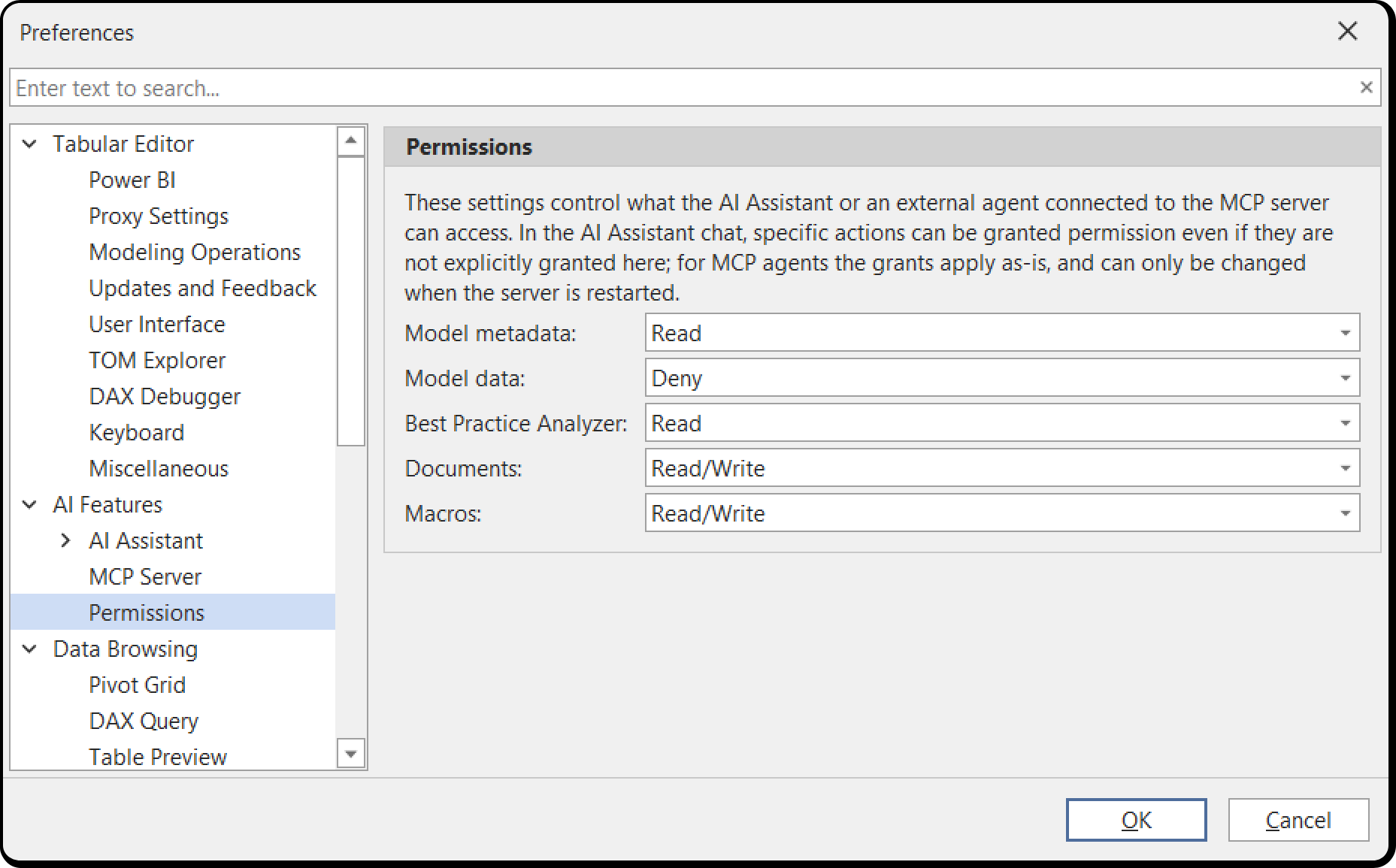
| Model metadata | Table, column and measure names, expressions, descriptions and similar. Read also covers VertiPaq Analyzer statistics | Deny / Read / Write | Read |
| Model data | Data values from your model, such as DAX query results. Requires a live connection | Deny / Read | Deny |
| Best Practice Analyzer | Read lists rules and runs the analysis; Write adds or modifies rules | Deny / Read / Write | Read |
| Documents | Your open documents: DAX queries, C# scripts and DAX scripts. Read is their contents; Write is needed to create or modify them | Deny / Read / Write | Write |
| Macros | Your macro library. Read lists and reads macros; Write is reserved for future macro-editing tools | Deny / Read / Write | Write |
Write (labeled Read/Write in the dropdowns) includes Read.
Note
Granting Model data sends data values from your model to your AI provider.
Some grants depend on others:
- Model metadata > Write is required for direct execution, which you turn on separately.
- Running the Best Practice Analyzer needs Model metadata > Read in addition to Best Practice Analyzer > Read.
- Running a DAX query needs Model metadata > Read in addition to Model data > Read. A query can read metadata through
INFOfunctions, DMVs and the column names in its result.
Setting the permission grants
Open Tools > Preferences > AI Features > Permissions, where each resource has a dropdown with its available levels.
The chat has no separate "ask" level and shows a permission card when it needs a resource set to Deny.
Note
From 3.27.0, Model metadata, Documents and Macros default to Read or higher, and the chat no longer prompts for them. By default, only DAX query results and Best Practice Analyzer rule edits show a card. Set a resource to Deny to get its prompt back.
Note
In Enterprise Edition, administrators can cap these permissions by policy. See Policies.
Permission cards in the chat
When the assistant needs a resource your standing grant doesn't cover, a Permission Required card appears in the conversation. The card names what the assistant wants to do, for example "The AI would like to access the metadata of your semantic model", or shows the DAX query it proposes to run.
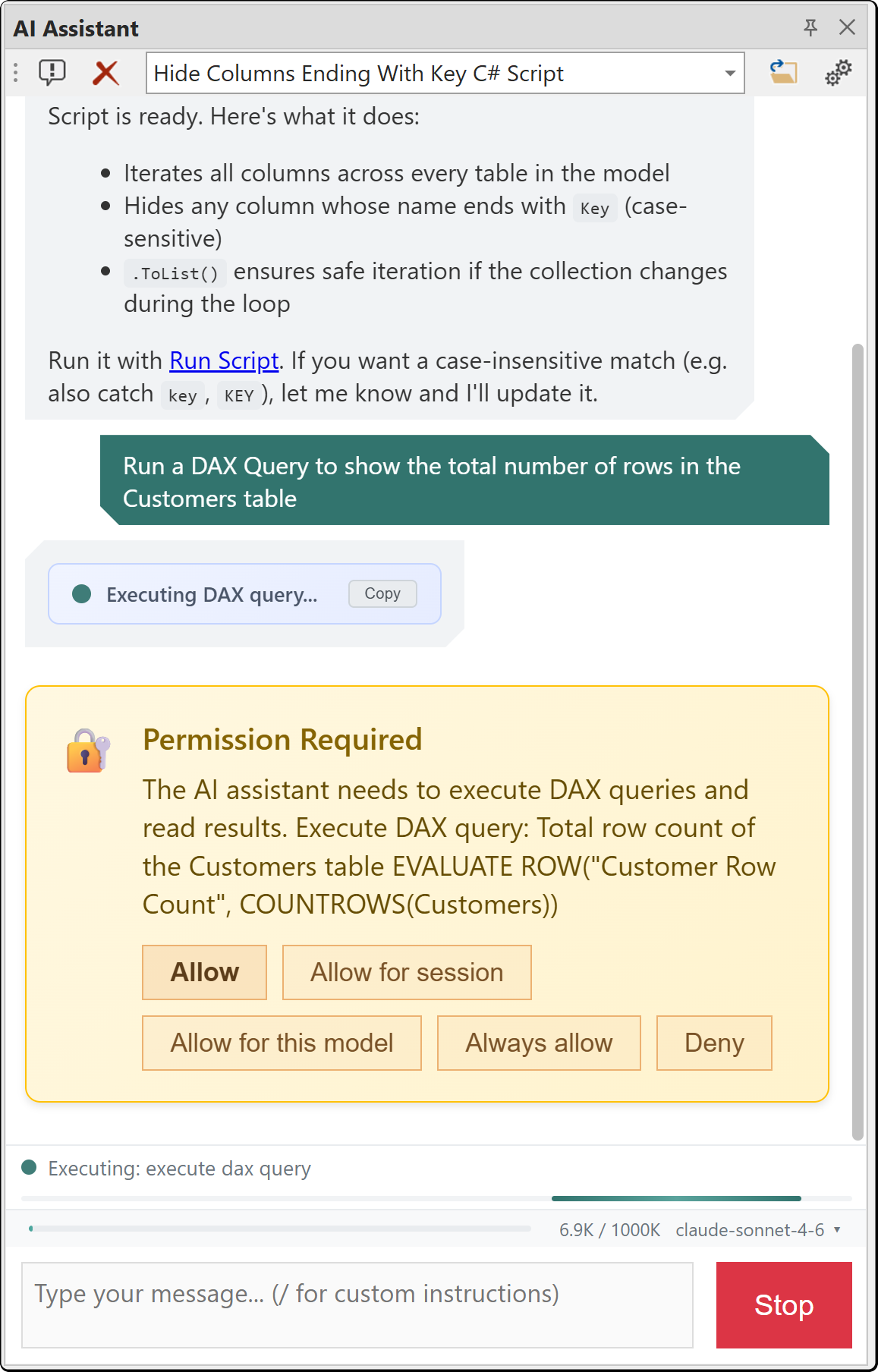
| Button | What it does |
|---|---|
| Allow | Applies to this turn only. The assistant can repeat the same request while it finishes your task, and nothing is remembered afterwards |
| Allow for session | Applies until Tabular Editor is restarted. The grant is held in memory and never written to disk |
| Allow for this model | Recorded in the model's user options file and applied the next time you open this model. Offered for Model metadata and Model data only, and only while a model is loaded |
| Always allow | Raises the standing grant on the Permissions page, for every model and every session |
| Deny | Denies this request. The assistant continues without that access, and the card appears again the next time it needs it |
Always allow never lowers an existing grant; allowing a read on a resource at Write leaves it at Write.
Stopping a turn while permission is pending
The turn pauses until you answer a Permission Required card. Stop ends the turn without an answer, removes the card and counts the request as denied. Send a new message to continue the conversation.
MCP server and AI Assistant differences
The MCP server uses the same five grants but shows no permission cards:
- grants are read when the server starts and apply until it stops, so a changed grant takes effect only after you restart the server
- only global grants apply. Grants given with Allow for this model or Allow for session apply to the chat only
- a denied resource's tools aren't in the agent's tool list
Withdrawing permission
Set a resource back to Deny on the Permissions page to withdraw its grant. The chat then shows a permission card the next time it needs that resource.
Lowering a global grant doesn't clear a per-model grant. Delete the model's .tmuo file, or the Permissions entry in it, to withdraw per-model grants. See User options (.tmuo) file.
Audit record
In Enterprise Edition, including Consultancy and Trial licenses, Tabular Editor writes a local log of AI Assistant and MCP server activity. It records:
- which permissions were requested and how you answered
- which tools ran and whether each one succeeded, failed or was blocked
- the full text of any C# script the assistant or an MCP agent ran, or handed to you for review
Your prompts, the assistant's replies and data values from your model are never recorded. Open audit folder under Tools > Preferences > AI Features opens the log folder.
Without an Enterprise license, and before a license is activated, nothing is recorded, no folder is created and the button isn't shown. See AI audit log for what each record holds, where the files are stored and the policies that redirect them.
Preferences
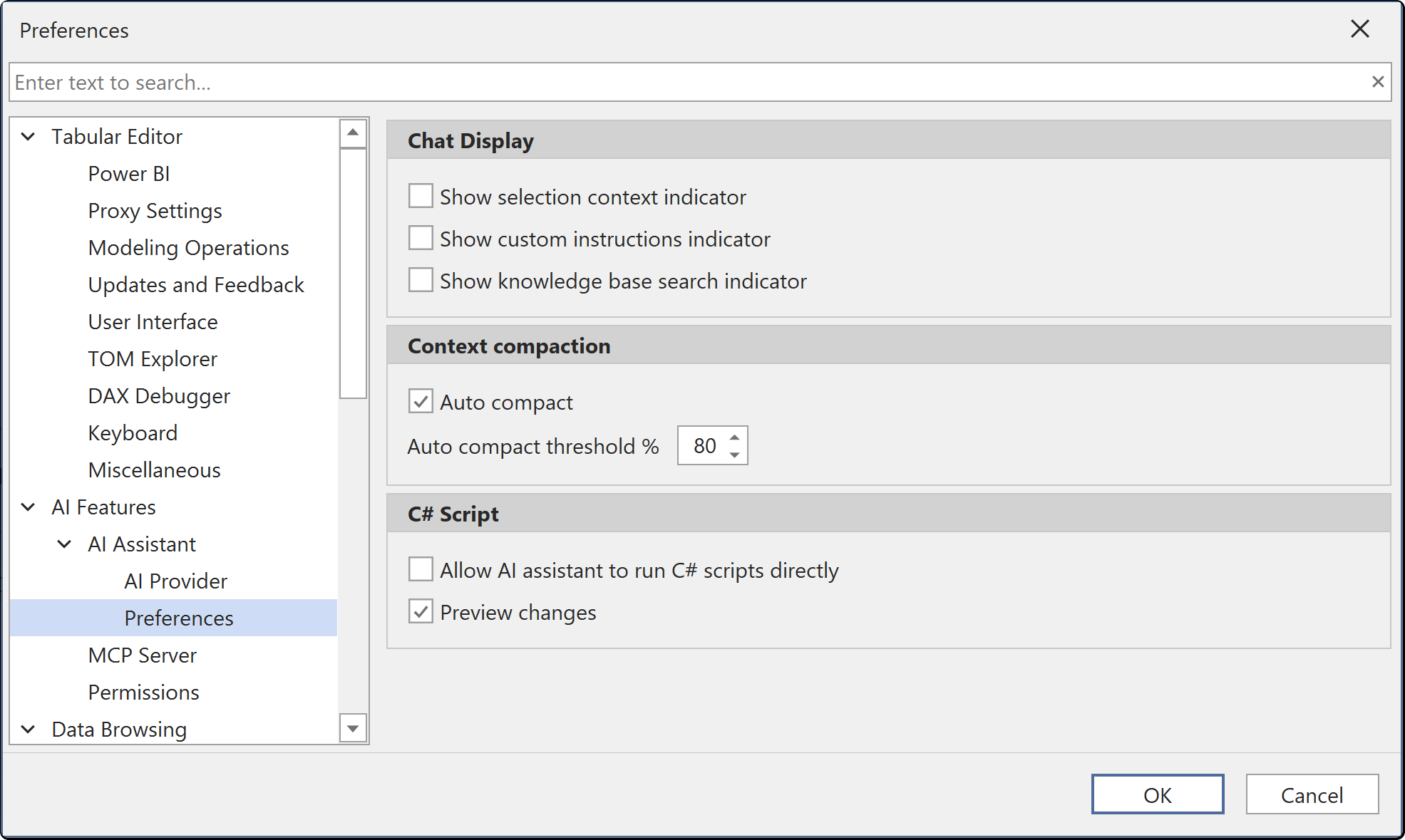
Configure AI Assistant display and behavior options under Tools > Preferences > AI Features > AI Assistant > Preferences.
Chat display
| Preference | Default | Description |
|---|---|---|
| Show selection context indicator | Off | Display the currently selected model object in the chat |
| Show custom instructions indicator | Off | Show Custom Instruction indicators above assistant responses |
| Show knowledge base search indicator | Off | Display progress when searching the knowledge base |
Context compaction
| Preference | Default | Description |
|---|---|---|
| Auto compact | On | Automatically summarize old messages when approaching the context limit |
| Auto compact threshold % | 80 | Percentage of the model's own context window at which auto-compaction is triggered. The field accepts 25 to 100. Values below 50 act as 50 and values above 90 act as 90 |
C# script
| Preference | Default | Description |
|---|---|---|
| Allow AI assistant to run C# scripts directly | Off | Lets the assistant run its C# scripts itself. When off, the assistant opens each script and you run it. Unavailable until Model metadata is set to Read/Write under Permissions, and unavailable entirely under the DisableCSharpScripts policy. See Letting the assistant change your model |
| Preview changes | On | Show the preview changes dialog when executing AI-generated C# scripts from the chat |
Check for knowledge base updates on startup and the Open audit folder button are on the AI Features page, above AI Assistant, and both also apply to the MCP server. See Controlling preferences.
Token usage
Each message to the AI Assistant consumes input tokens. The token cost of a single message depends on the context it includes:
- System prompt and Custom Instructions: sent with every message, typically 5,000 to 15,000 tokens depending on which Custom Instructions are active
- Model metadata: retrieved through tool calls, in stages. The assistant first fetches a lightweight overview (table and measure names, relationships), then searches for relevant objects by name, description or DAX expression, and retrieves full details only for the tables or objects the question requires. A very large tool result is truncated, with guidance on how the assistant can retrieve the rest
Token counter
The token counter is in the status strip above the message box, next to the active model indicator. The bar reads used / total in thousands of tokens and is colored green, amber or red as the context fills up. A ± in front of the figure means an exact count isn't available yet.
Hover over the counter to see a breakdown:
| Section | What it covers |
|---|---|
| Last turn | What the most recent exchange cost: fresh input, tokens served from the provider's prompt cache, tokens written to the cache and output |
| This conversation (billed) | The same four figures accumulated across every request in the conversation, tool round-trips included |
| Context | Tokens currently in the context window, against the window's real size |
A line reads, for example, 37,588 input + 131,744 cached · write 37,558 · output 2,866. The cache parts are left out for providers that don't support prompt caching, and a section is left out when it has nothing to report.
Tip
Compare Last turn with This conversation (billed) to see what a single question cost. In a long conversation, a large This conversation (billed) figure next to a small Last turn figure is normal.
Context window
The context usage bar, the auto-compaction point and the maximum length of a single reply use the selected model's context window. For example, a model with a one-million-token window is measured against a million tokens. If the model's window isn't known (an Azure OpenAI or Custom deployment name, or a machine where the model catalog has never been retrieved), Tabular Editor uses 200,000 tokens.
Reducing token usage
Select specific objects in the TOM Explorer before asking your question. The assistant then scopes its context to the selected objects and doesn't retrieve metadata for the entire model, which reduces both token usage and API cost the most.
Other ways to reduce token usage:
- Ask focused questions about specific tables, measures or columns. A vague prompt such as "Set display folders on all measures" makes the assistant retrieve metadata for the entire model. A specific prompt such as "Set display folders on the measures I have selected" limits the context to the current selection and uses far fewer tokens
- Start a new conversation when you switch topics, so long histories don't accumulate
- Use a smaller or less expensive model for exploratory questions
Limitations
- requires your own API key; no API key is built in
- response quality depends on the provider and model you select
- the AI Assistant doesn't replace knowledge of DAX and semantic model design fundamentals
- the AI Assistant can't access external files or services, or search the web
- the AI Assistant can't connect to external MCP servers to extend its own tools. To use your own agent with Tabular Editor 3, see MCP server
- the AI Assistant can't connect to a different model from the chat. Change model connections in the Tabular Editor user interface
- the AI Assistant can't manage preferences
Disabling the AI Assistant
The AI Assistant is an optional component, installed by default from Tabular Editor 3.27.0. Run the Tabular Editor 3 installer again to include or exclude it in an existing installation. In the portable build, delete TabularEditor3.AI.dll from the installation directory to remove it.
The same component contains the MCP server, so excluding it or deleting TabularEditor3.AI.dll removes both. To turn off only the chat, keep the component and set the DisableAiChat policy.
Note
Whether or not the component is installed, a system administrator can turn off all AI functionality in Tabular Editor 3, the MCP server included, with the DisableAi policy. DisableMcpServer turns off the MCP server alone. See Policies.