Auto-reload from disk
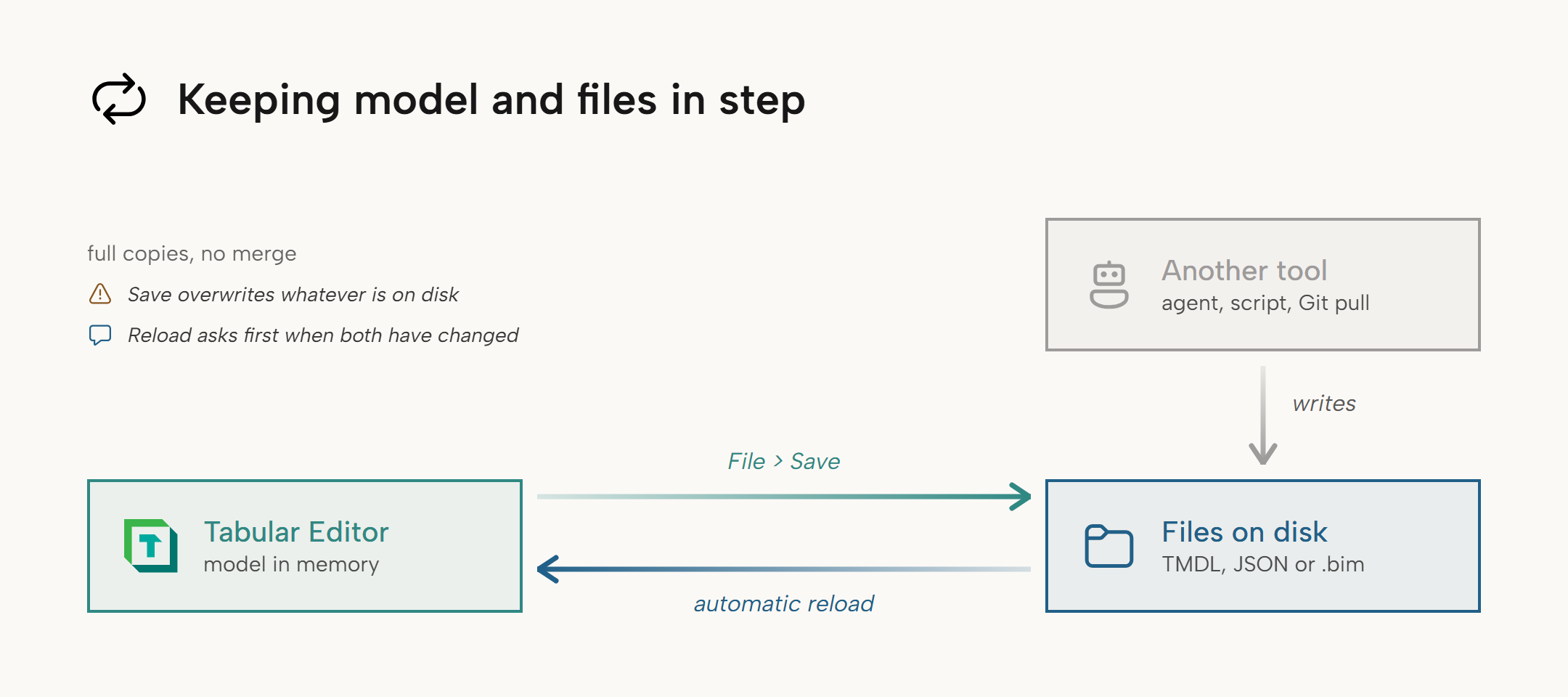
When the metadata files of a model you loaded from a file or folder change on disk, Tabular Editor reloads the model automatically. If you have unsaved changes, a prompt appears where you choose to reload or keep your changes. Typical sources of external changes are an AI agent, a script, another editor, a git pull or a colleague editing a shared folder.
Note
Auto-reload monitors files and is independent of Track external model changes and Refresh local Tabular Object Model metadata automatically under Tools > Preferences > Tabular Editor > Miscellaneous. Those settings use an Analysis Services trace to detect changes to a connected database.
Monitored files
| Model loaded from | Monitored files |
|---|---|
A .bim file |
That file. Other files in the same folder are ignored. |
| A folder in the JSON (Database.json) format | Every .json file below the model root, including subfolders. |
| A folder in the Tabular Model Definition Language (TMDL) format | Every .tmdl file below the model root, including subfolders. |
| A workspace database | The files backing the model in workspace mode, by the same rules as the rows above. |
| A database or Power BI Desktop, outside workspace mode | None. The model has no files on disk. |
A .pbit template, or a model you've never saved |
None. |
Reload with unsaved changes
If you have unsaved changes, the External changes detected prompt appears and you choose which version to keep, because Tabular Editor doesn't merge them.

- Reload discards your unsaved changes and loads the version on disk.
- Ignore keeps your changes. The files on disk keep the external changes, and your next save overwrites them.
Pressing Esc or closing the prompt has the same effect as Ignore.
Warning
Reload is the default button, so pressing Enter at the prompt also reloads. A reload discards your unsaved changes without further confirmation, and you can't undo it.
Example
- You open a TMDL folder model and rename a measure.
- An AI agent working in the same folder rewrites four
.tmdlfiles. - After the agent's writes finish, one External changes detected prompt appears.
- You choose Reload, which discards the rename and loads the agent's changes. The TOM Explorer keeps its expanded nodes.
Multiple writes and background changes
When a tool rewrites a folder-serialized model, it changes many files in quick succession, and Tabular Editor reloads once, after the writes finish.
If Tabular Editor isn't the active window when the files change, the reload or prompt happens when you switch back to it. All changes made while it was inactive produce one prompt.
Workspace mode
In workspace mode, a reload also redeploys the model to the workspace database.
Turning it off
Auto-reload is enabled by default, and you turn it off by clearing Automatically reload from disk (hot reload) under Tools > Preferences > Tabular Editor > Miscellaneous.
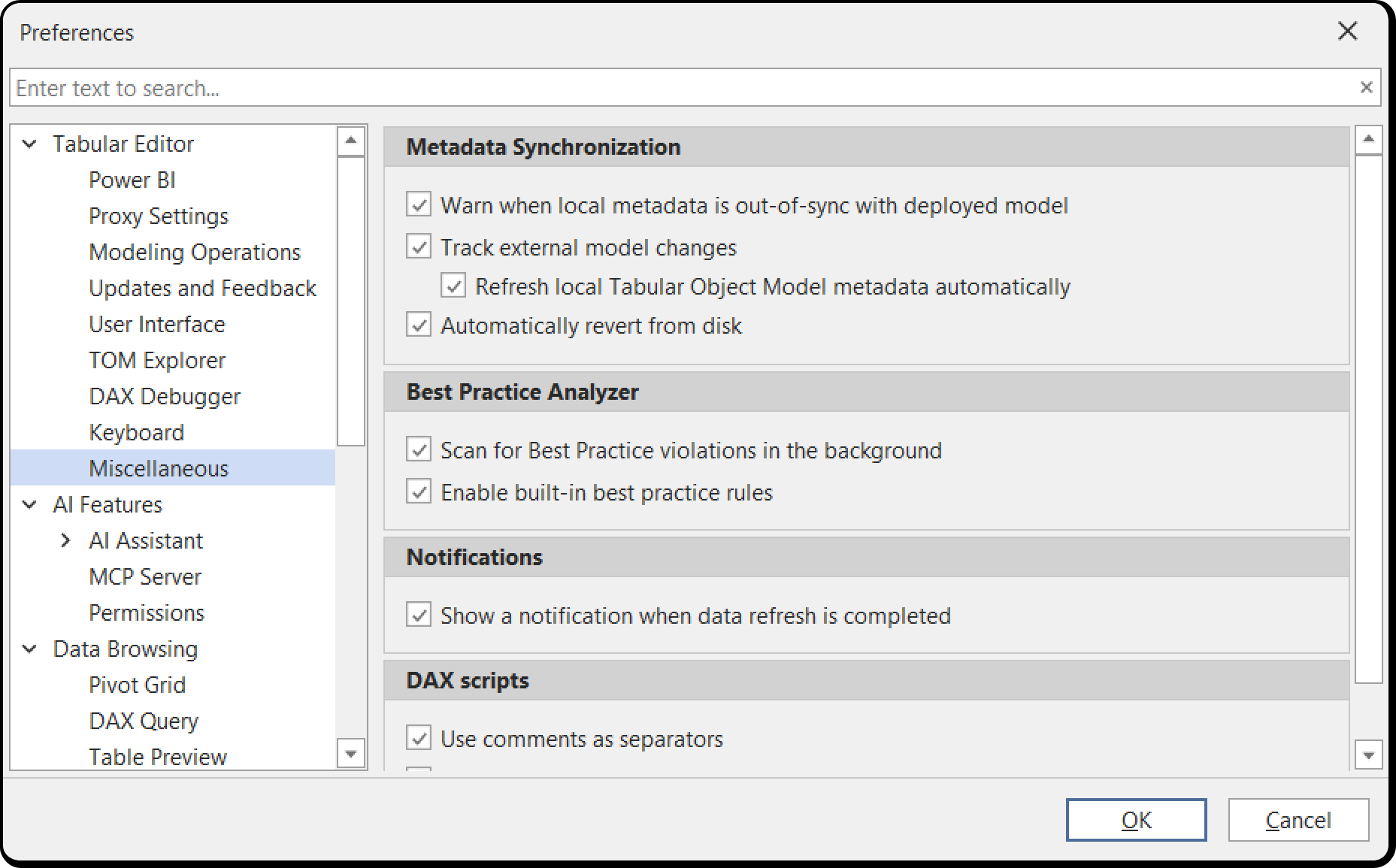
Turn it off if a continuously running process also writes to the model folder, such as a file sync client or a CI checkout that refreshes in the background. Each change triggers a reload, or the modal prompt when you have unsaved changes.
With the setting cleared, use File > Reload from disk to load external changes, or File > Save to overwrite them with the model in Tabular Editor. See Preferences for the other settings on that page.